
Did you know that you can actually play on 3rd-party Minecraft servers, like Evercraft Infinity and NetherGames, from your console? While the feature is normally locked away, there’s several community-supported options to fix that. We published an article in 2020 about an effective method to connect to servers on console for our own server members to use as reference. That guide became a bit of a resource for the greater Realms community, and with so many more options being released over the years, we decided it’s time to revisit the subject.
Workaround Options
Bedrock Online – Our #1 Overall Pick
This handy mobile app is available on iOS and Android for free with no intrusive ads. It features the latest technology allow for smooth connections. You do not need Minecraft on your phone for this to work. Read below for more info!
BedrockConnect – Set-and-Forget
This DNS service will allow any device running Minecraft Bedrock to connect to 3rd-party servers by redirecting requests to connect to any of the “Featured Servers” to a unique custom server list, with no extra device required. Read below for more info!
MC LAN Proxy – Legacy Option
This older Android app will allow your Xbox or PlayStation to connect to 3rd-party servers by using your phone as a bridge. You do not need Minecraft on your phone for this to work. This legacy option is no longer recommended.
BedrockTogether – Legacy Option
This older iOS app will allow your Xbox or PlayStation to connect to 3rd-party servers by using your phone as a temporary bridge. You do not need Minecraft on your phone for this to work. This legacy option is no longer recommended.
Bedrock Online
Bedrock Online is the new kid on the scene this year and is making waves, for good reason. This cross-platform app has pretty much all the features you want, with none of the junk you don’t. Made by server owners for the community, the only small caveat if you can call it that, is a few default featured servers listed on the app, which every other app and Minecraft itself do anyway. Do yourself a favor and grab this one today.
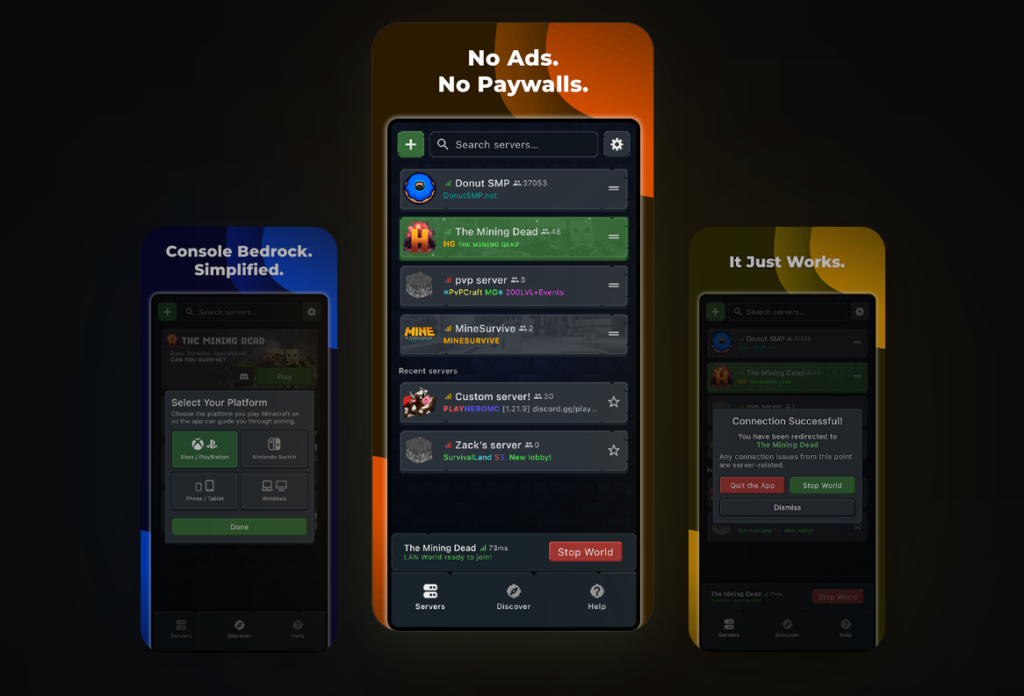
We aren’t sponsored by or affiliated with Bedrock Online (or any of the projects mentioned in this article), but in it’s current state as of 2026, it has our full endorsement, and is easily our #1 pick for getting your console online.
Method: Bedrock Online
Pros: Available on iOS & Android. Works on all devices. Free. You can close the app or even turn off your phone after you’re connected.
Cons: Requires a phone.Difficulty to setup: 0/5
Tested on Xbox One + Android 14
Difficulty to use: 1/5
BedrockConnect
This DNS service works by redirecting the domain name requests from the default “Featured” Minecraft servers to the IP of a specialized “server list” server. From there you can add IPs and connect to any server you wish. Due to the nature of this workaround, it can be tricky for less tech-savvy users to setup. However, it will also work on any device, including Nintendo Switch, and should only ever need to be set up once per console.
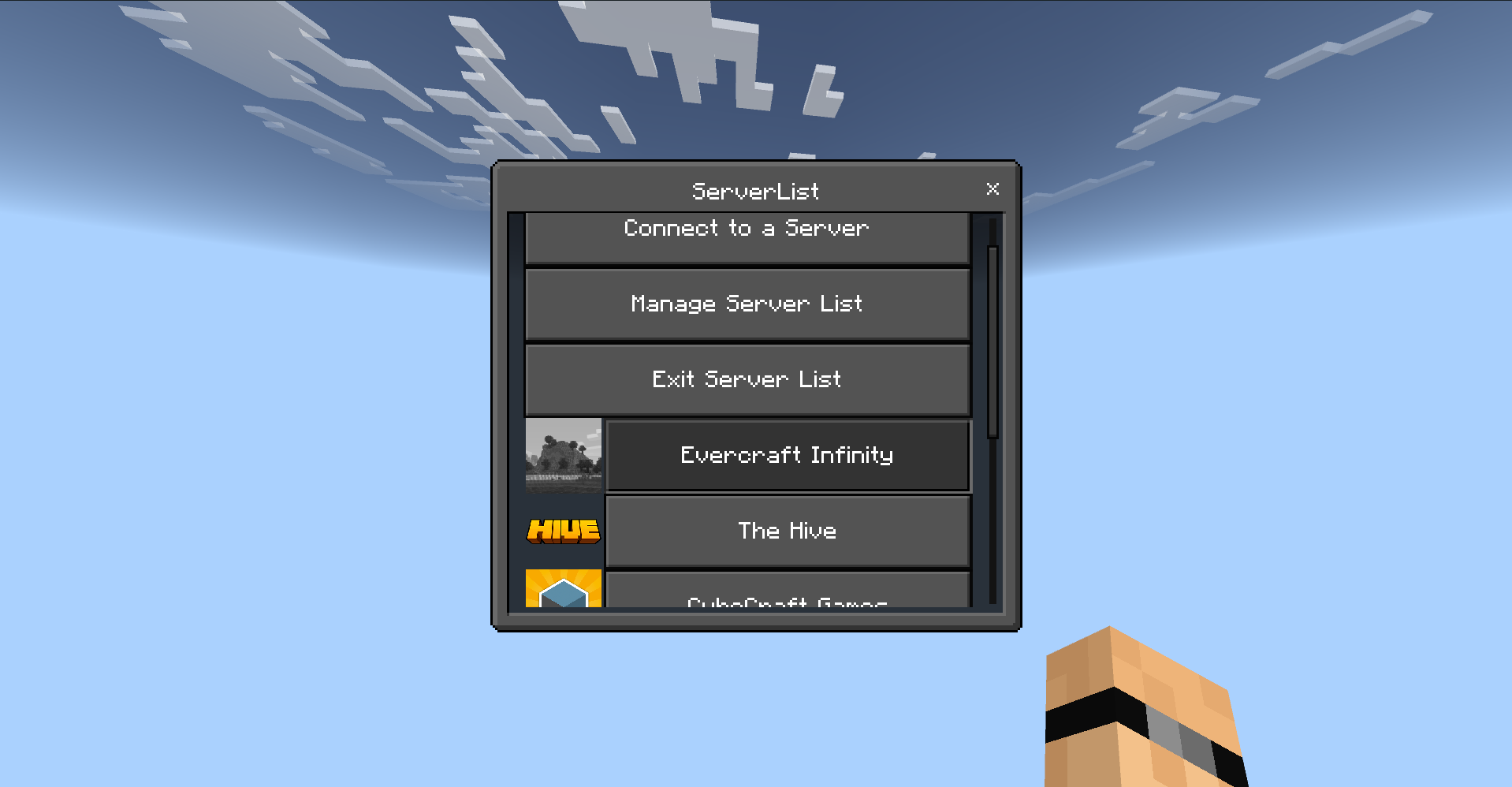
BedrockConnect is a great “set-and-forget” option since it doesn’t require another device, and once it works for you, it should never need tinkered with again. If you can’t get it to work on your network however, try out one of the apps listed above!
Method: DNS Bypass
Pros: Works on all devices. Free. Should only require setup once.
Cons: Requires some tech savvy.Difficulty to setup: 3/5
Tested on Xbox One
Difficulty to use: 0/5
MC LAN Proxy
Update: MC Lan Proxy is a Legacy option, and we’d recommend a more modern alternative.
This Android app works by generating a fake local-multiplayer game on your network. When you connect to it from within Minecraft, your phone will direct it to the server address you provided. It doesn’t seem to “hand-off” the connection at any point, so if you close the app or turn your phone off after connecting, you’ll lose connection to the server. This is also a paid app, though there is a 10 minute trial version (linked below) so you can test it and make sure it works for you first.
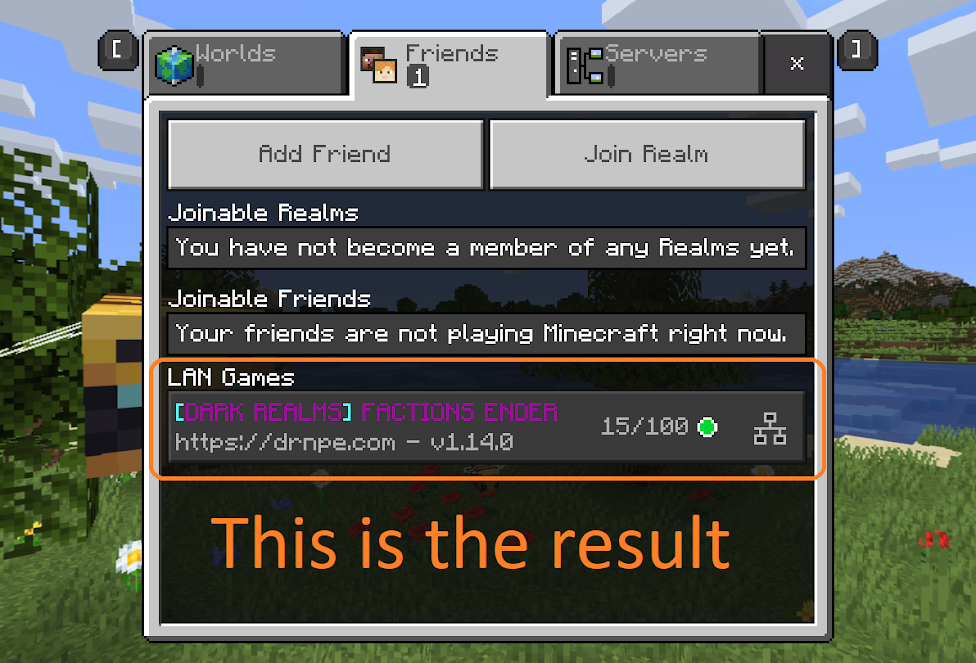
MC LAN Proxy is ideal for people who cannot get BedrockConnect to work on their network, or are otherwise unable to edit their DNS settings. You’ll also need and Android phone, so iPhone users, check see below for an even easier solution!
Method: LAN Proxy Bridge
Pros: Available on Android, works with Xbox & Playstation.
Cons: Can add more latency (ping). Closing the app or turning off your phone will disconnect you. Will not work with Nintendo Switch. Costs $2.50 USD, but there is a very limited trial version so you can test and make sure it works on your device.Difficulty to setup: 0/5
Test on Xbox One + Galaxy S9 w/ Android 10
Difficulty to use: 2/5
Hybrid Method
You can avoid most of the cons of MC LAN Proxy by partially using BedrockConnect.
- Simply download the trial version of MC LAN Proxy and connect to a public BedrockConnect instance, no DNS required.
- Once logged in to the BedrockConnect server you can use it to connect to your actual destination address.
- Since this process connects you to another server, the MC LAN proxy app is no longer hosting your connection. This way you don’t have to worry about the 10 minute limit, or your phone putting the app to sleep!
- You get all the advantages of BedrockConnect, without needing to fiddle with any network or DNS settings.
BedrockTogether
Update: BedrockTogether is a Legacy option, and we’d recommend a more modern alternative.
This iOS app works by generating a fake local-multiplayer game on your network. When you connect to it from within Minecraft, your phone will redirect you to the inputted server and “hand-off” the connection. Unless you have the paid version, you have to watch an Ad each time you connect. Fortunately, since the connection is “handed-off” to the server, you can close the app or even power off your phone once you’re connected. There is an option to pay to remove Ads, but the app is otherwise free.
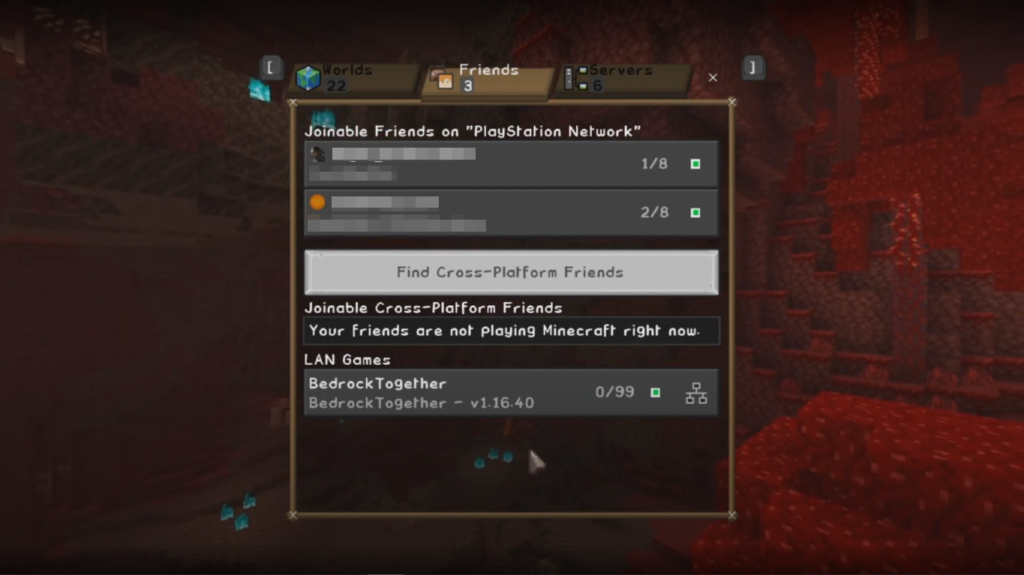
BedrockTogether is ideal for people who cannot get BedrockConnect to work on their network, or are otherwise unable to edit their DNS settings. It requires an iOS device to use, like an iPhone or iPod touch. If you have the choice, we do recommend this app over MC Lan Proxy since you don’t have to worry about your phone disconnecting you.
Method: LAN Proxy Hand-off
Pros: Available on iOS, works with Xbox & Playstation. Free. You can close the app or even turn off your phone after you’re connected.
Cons: Requires watching a video ad to connect. (Has paid version without ads) Sometimes you’ll have to retry connecting a few times. Will not work with Nintendo Switch.Difficulty to setup: 0/5
Tested on Xbox One + iPhone 11 w/ iOS 14.3
Difficulty to use: 3.5/5
If this guide helped you out at all, please consider sharing! If you are having trouble with any of the methods listed above, comment down below and I’ll try to help out.
I am having troubles connecting to my server using my Xbox. I plug in the same numbers as you did in the video for the Xbox above and I’m still not able to connect. Any ideas that doesn’t require my phone?
Hey Christian! Sorry that workaround didn’t work for you, what we would suggest is trying some of the other publicly available BedrockConnect addresses listed at: https://github.com/Pugmatt/BedrockConnect#publicly-available-bedrockconnect-instances